How to Upload Multi-Language Videos on YouTube
Follow the current YouTube Studio steps for adding dubbed audio, subtitles, translated metadata, and localized thumbnails to a video.
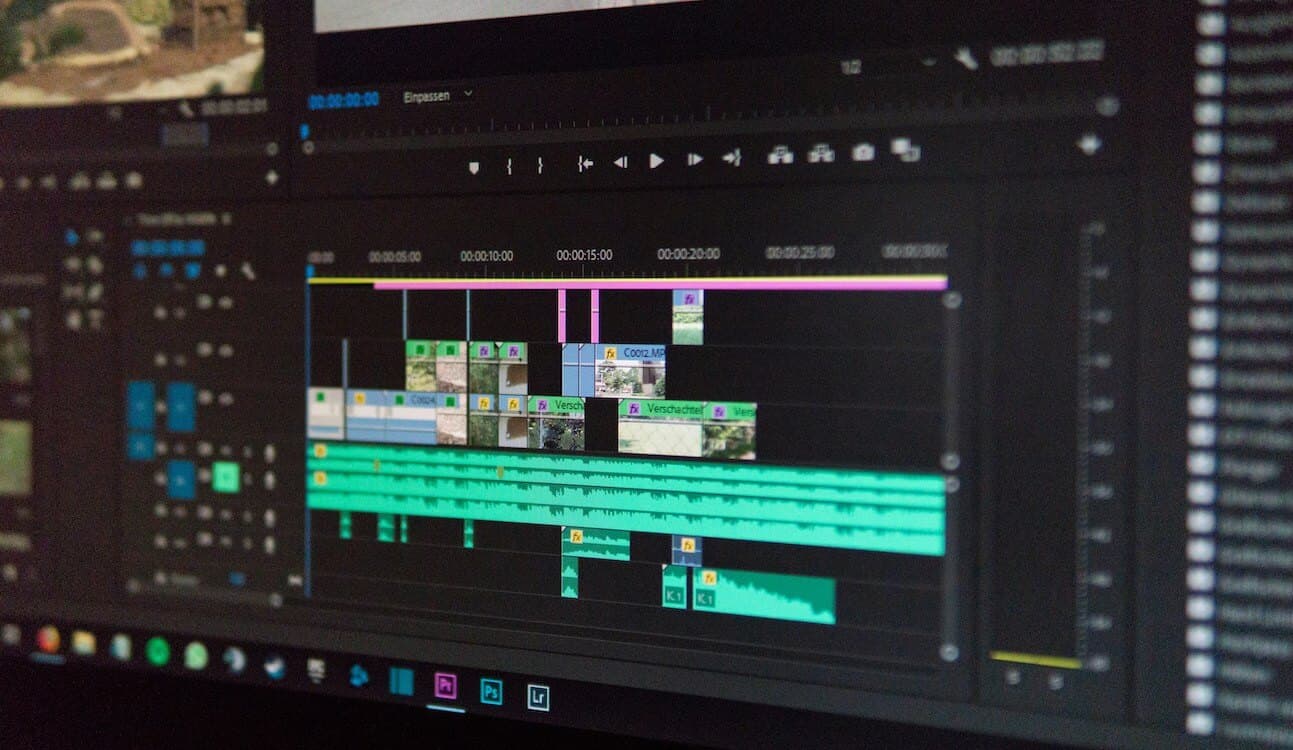
You do not need to upload a separate video for every language. If your channel has access to YouTube multi-language audio, you can attach additional audio tracks to one video and keep the same URL, view count, comments, and primary analytics record.
This guide covers the publishing steps. If you need the production process before upload, use the YouTube multi-language audio workflow.
Before you open YouTube Studio
Prepare one folder for each target language. Include:
- Final audio-only dub
- Final subtitle file
- Translated title
- Translated description
- Localized thumbnail, if needed
- Reviewer approval
- Notes about required disclosures
Use clear file names:
product-demo.es-ES.audio.wav
product-demo.es-ES.subtitles.srt
product-demo.es-ES.metadata.txt
Language and region codes reduce mistakes when several versions are handled at once.
Step 1: Confirm channel access
Open YouTube Studio on a computer and look for Languages. YouTube says multi-language audio is available to a subset of creators with access to Advanced features while access expands.
If the option is missing, check your channel's feature eligibility. You may still be able to add translated subtitles, titles, and descriptions.
Step 2: Check the original video language
Set the correct source language before adding translations. The source language affects captions, automatic dubbing, and how the language versions are organized.
Use the language spoken in the original audio, not the country where the video was recorded.
Step 3: Add the dubbed audio track
According to YouTube's current multi-language instructions:
- Sign in to YouTube Studio on a computer.
- Select Languages.
- Choose the video.
- Select Add Language.
- Choose the target language.
- Next to Dub, select Add.
- Select the audio file.
- Publish the track.
The file must use a supported audio-only format and be roughly the same length as the video.
If an automatic dub already exists for that language, remove it before uploading your reviewed version.
Step 4: Add subtitles
Dubbed audio does not replace subtitles.
To add a subtitle track:
- Open the video's language options.
- Add or select the target language.
- Next to Subtitles, select Add.
- Upload the reviewed subtitle file or enter the text.
- Check the timing.
- Publish the track.
YouTube's subtitle guide covers the current upload options. If you are choosing between file types, see SRT vs VTT vs transcript vs audio files.
Step 5: Add the translated title and description
Add metadata for the same target language.
Translate:
- The title
- The main description
- Calls to action
- Product names only when the brand uses a translated form
- Relevant chapter titles
Do not change a factual claim just to make the title more attractive. Check every price, date, link, and availability statement.
YouTube explains how translated metadata is shown to viewers in its title and description guide.
Step 6: Add a localized thumbnail
Eligible long-form videos can use thumbnails in different languages.
A localized thumbnail is useful when the source thumbnail contains text. Keep the visual concept consistent so viewers recognize the same video.
Review:
- Text accuracy
- Text size on mobile
- Brand spelling
- Numbers and prices
- Safe margins
- Cultural meaning
If the source thumbnail contains no language-specific text, one thumbnail may be enough.
Step 7: Handle synthetic-content disclosure
YouTube requires disclosure when altered or synthetic content seems realistic and makes a real person appear to say or do something they did not do.
YouTube lists cloning someone else's voice for voiceovers or dubs as an example that requires disclosure. It lists cloning your own voice for voiceovers or dubs as an example that does not require the same disclosure. Review the current altered-content policy for your situation.
Disclosure does not replace consent. Get permission before cloning or publishing another person's voice.
Step 8: Test the public video
After processing finishes:
- Open the public video.
- Open Settings.
- Select Audio track.
- Choose the new language.
- Turn on the matching subtitles.
- Confirm the title and description appear in the expected language.
- Watch the beginning, middle, and end.
Test on desktop and mobile. Ask someone whose preferred YouTube language matches the target language to check what appears by default.
Step 9: Monitor the language track
Use YouTube Analytics to review:
- Views by audio language
- Watch time by audio language
- Viewer geography
- Retention on dubbed videos
- Comments about translation quality
- Subtitle language use
Compare the target-language results with similar source-language videos. One video is not enough to judge an entire market.
Common upload problems
The Languages option is missing
Your channel may not have access yet. Check Advanced feature eligibility and continue with subtitles and translated metadata if available.
The audio does not line up
Confirm that the dubbed file begins at the same point as the source and is roughly the same length. Do not add extra silence at the beginning.
YouTube will not accept the manual dub
Check whether an automatic dub already exists for the language. YouTube requires that version to be deleted before a manual track is uploaded.
The wrong language plays by default
Viewers can set preferred languages and can switch tracks in player settings. Confirm that the track language is labeled correctly.
The translated title does not appear
Check the viewer's preferred language and confirm that the title and description translation was published for the same language.
Final checklist
- Source language is correct.
- Dubbed audio passed target-language review.
- Audio timing matches the source video.
- Subtitles match the final dub.
- Title and description are translated.
- Thumbnail text is translated where needed.
- Voice permissions are documented.
- Required disclosure is set.
- The public video was tested.
- Analytics will be reviewed by audio language.
- Authors

- Written by:
- Chao Wu
- Title
- Founder of Dub AI
Dub AI
Translate and dub videos easily using AI. Your first minute is free.
Start freeGet 60 credits free. Dub up to 1 minute. No credit card needed.